
You record a one-hour podcast, a webinar, or a stream and somewhere in it are three or four moments that would make great TikToks, Reels or YouTube Shorts. Finding them by hand means scrubbing through the whole recording and that is why AI clipping tools exist. They watch the long video for you, pick the strongest moments, reframe them to vertical, add captions and hand back ready-to-post shorts.
The market is crowded now and the pricing is confusing, because almost every tool charges by minutes of source video rather than by clips exported. This guide covers the best AI clipping tools in 2026, what each is good at, what it really costs and which one fits your workflow.
What an AI Clipping Tool Actually Does
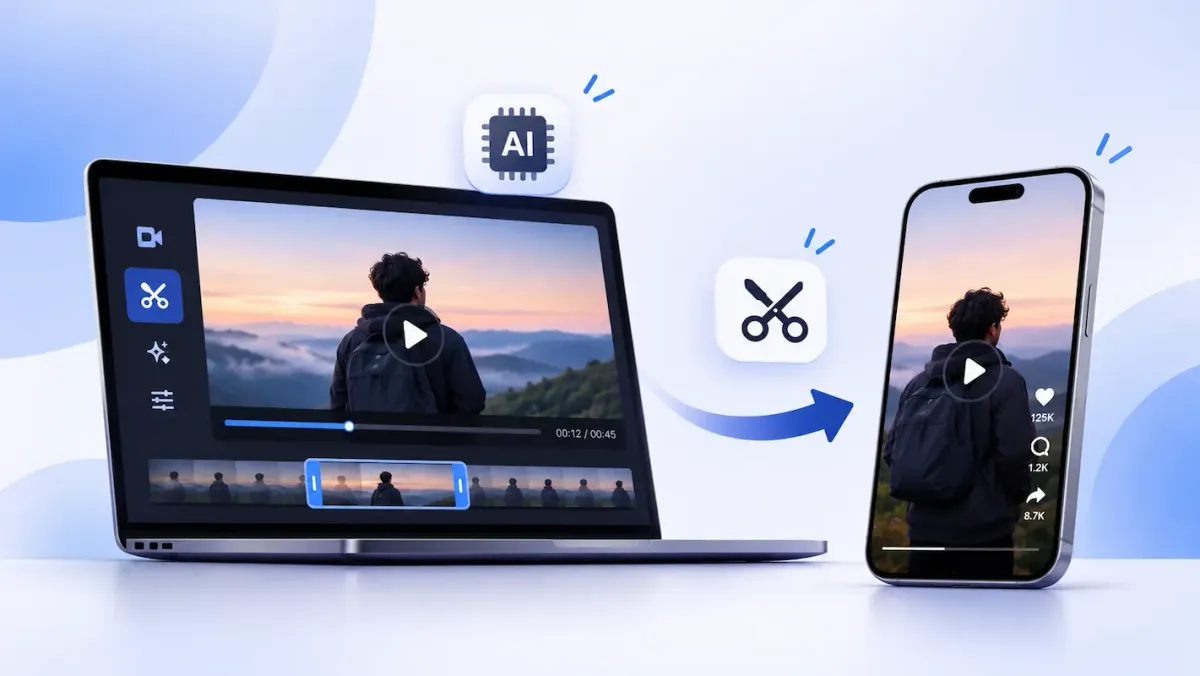
Most clippers follow the same steps. They transcribe your video, score segments by how likely they are to hold attention (a “hook,” a strong opinion, a punchline), cut those segments and convert them from horizontal to vertical. Face tracking keeps the speaker centered, and animated captions are added on top. Better tools also offer a transcript editor, B-roll, brand templates and scheduling straight to social platforms.
Two details matter more than any feature list. First, how well the AI chooses moments, since a clip nobody wants to watch is worthless however good its captions look. Second, how credits work. On OpusClip and Vizard, one credit equals one minute of the original video you upload, whether it produces one clip or fifteen.
1. OpusClip: Best Overall for Podcasts and Long-Form Video
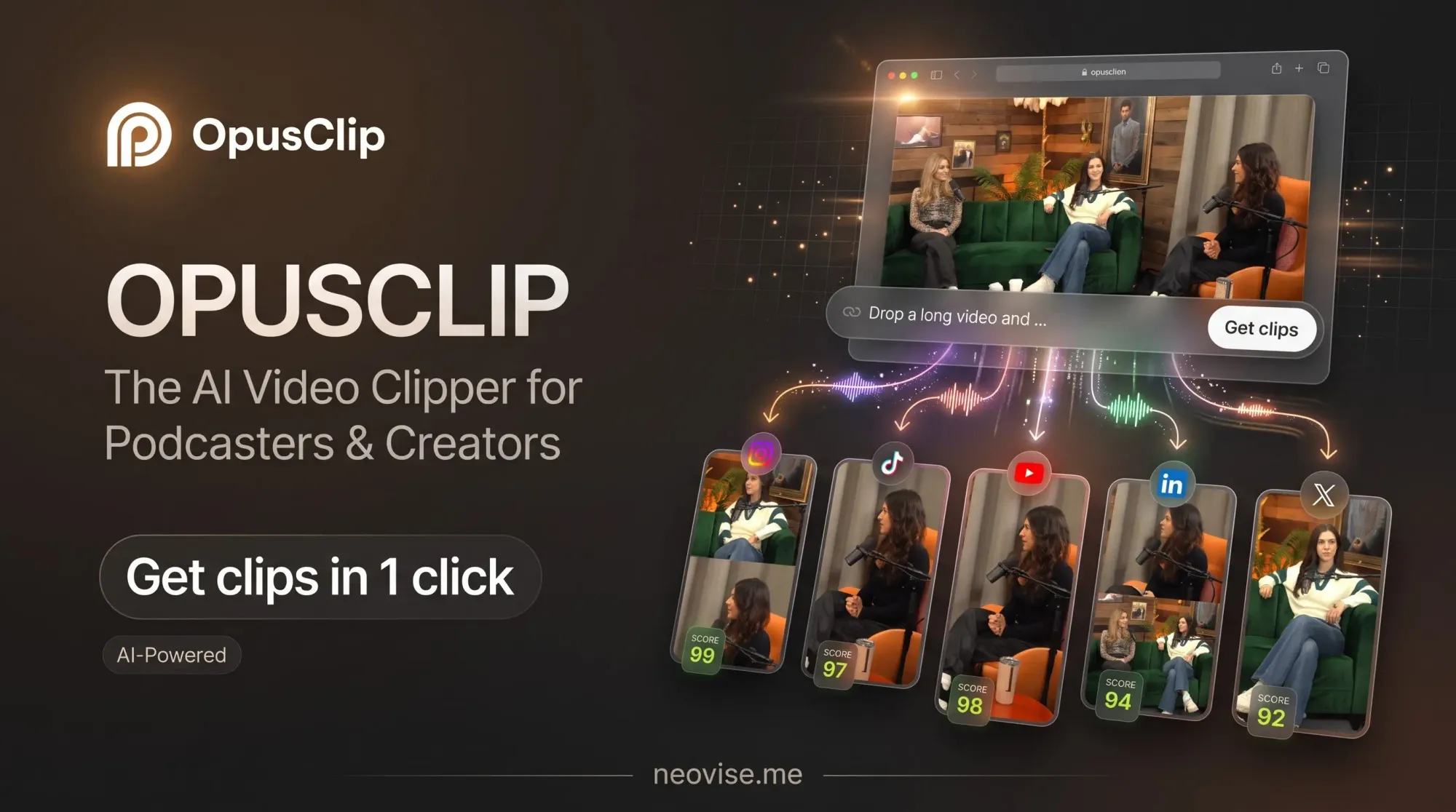
OpusClip is the best-known name and still the strongest at the hardest part, picking the moments worth posting. It is built for talking-head content such as podcasts, webinars, interviews, and lectures, and it adds a virality score to each suggested clip.
Pricing, as listed in late October 2026, runs like this. The free plan gives 60 credits a month, with watermarked exports, no editing, and a three-day window to download. Starter is $15 a month, monthly billing only, with 150 credits and no watermark. Pro is $29 a month, or $14.50 a month billed yearly ($174 upfront), with 300 credits, extra seats, and a multi-platform scheduler.
The catch is the credit math. A 60-minute episode uses 60 credits, so four weekly episodes need 240, which is more than Starter includes. If you clip regularly, annual Pro is the best value of the three.
Pros
- Best at choosing the moments worth posting, with a virality score for each clip
- Annual Pro is cheap per minute of source video
- Posting to YouTube Shorts, TikTok, and Instagram from Starter, plus a scheduler on Pro
- Free plan is enough to test the workflow on one episode
Cons
- Credits are charged per source minute, so long recordings burn through allowances fast
- Free exports are watermarked, can’t be edited, and expire after three days
- Starter is monthly only and leaves out some editing features
- Captions are good but not the best available
2. Vizard: Best Value With Built-In Scheduling
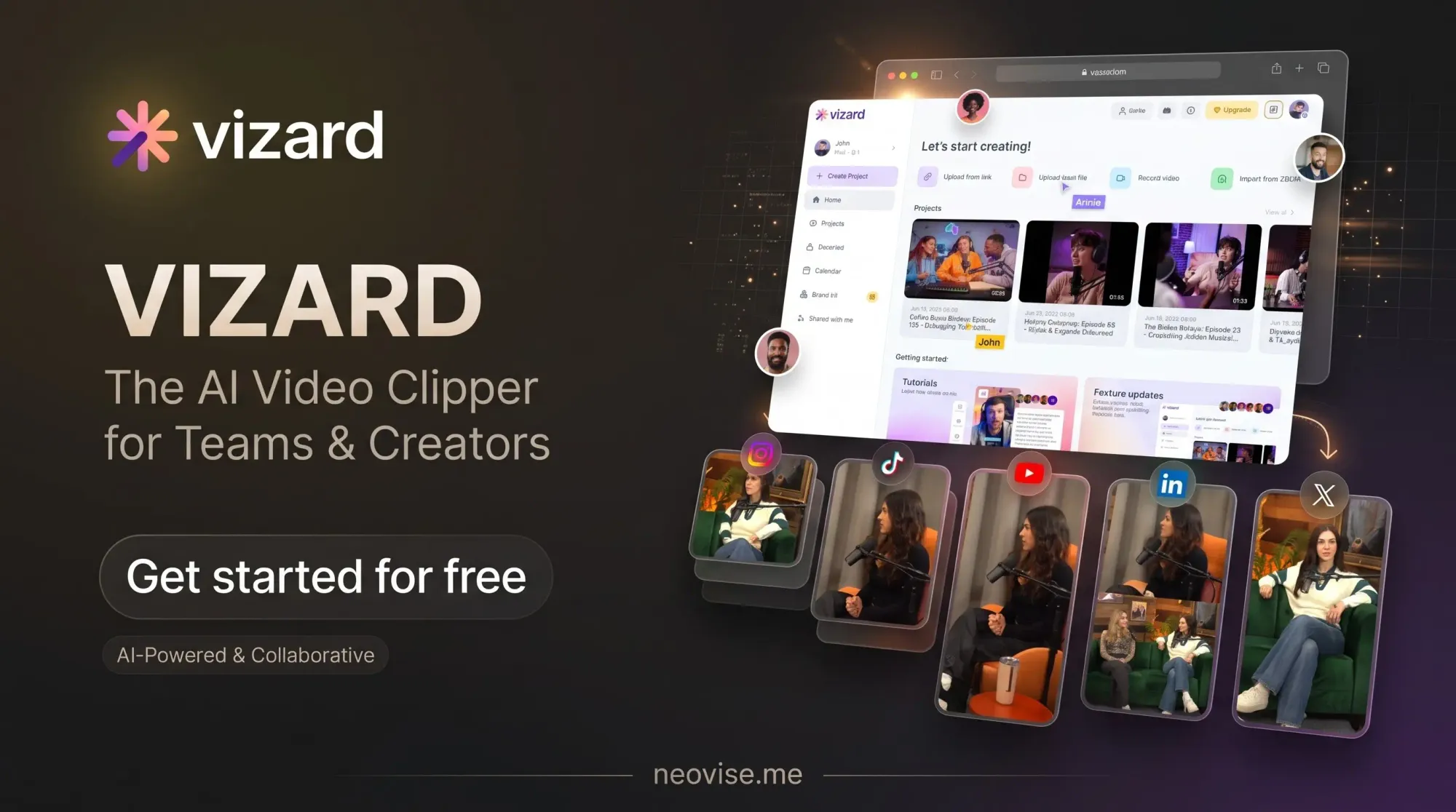
Vizard is the usual budget alternative. It uses the same one-credit-per-minute system, has a free tier of 60 credits with 720p exports and a watermark, and puts more emphasis on team workflows, brand kits, and posting directly to social accounts. Paid plans add 4K export and much longer uploads, with the Creator tier starting around 600 credits a month.
One honest warning: Vizard’s prices were inconsistent across the comparison sites I checked, with figures from about $19 to $29 a month depending on the source and billing period. Check its pricing page before you commit.
Pros
- Generous credit allowance per dollar on paid plans, with 600 credits a month on Creator
- Brand kits and team features suit small marketing teams
- Native scheduling to social accounts
- 4K export and long uploads on paid plans
Cons
- Pricing is unclear and varies between sources
- Free projects are deleted after about three days
- Free exports are limited to 720p, and removing the watermark requires a paid plan
- Moment selection is rated good, not best, in comparisons
3. Submagic: Best for Caption Styling
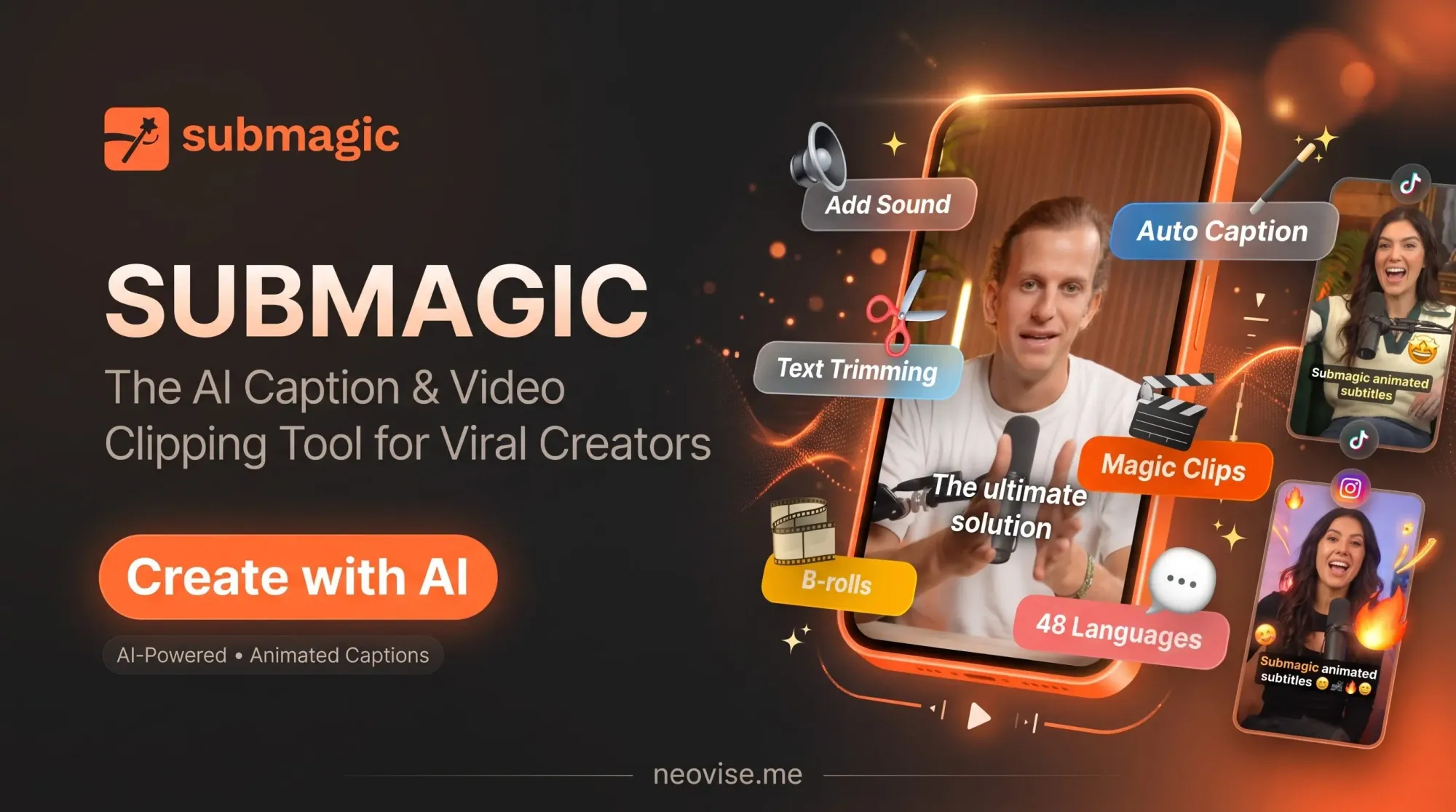
Submagic is better described as a captions tool that also clips. Its animated caption styles, emoji highlights, and zoom effects are the ones many creators try to copy, and it is a polished choice for short clips you have already trimmed.
Reported prices are $19 a month on Starter ($12 billed yearly) for about 15 videos of up to two minutes, and $39 a month on Pro ($23 yearly) for about 40 videos of up to five minutes. A free tier gives roughly three watermarked videos a month.
Pros
- Some of the best-looking animated captions available
- Lowest yearly entry price among the paid options, at $12 a month
- Publishing to social platforms is available
- Fast polish for videos you have already trimmed
Cons
- Weaker than OpusClip at picking the best moments
- Strict video length caps (two minutes on Starter, five on Pro)
- Limited to a set number of videos a month, not minutes
- Many creators end up paying for a second tool alongside it
4. Descript: Best When You Want to Fix the AI’s Mistakes
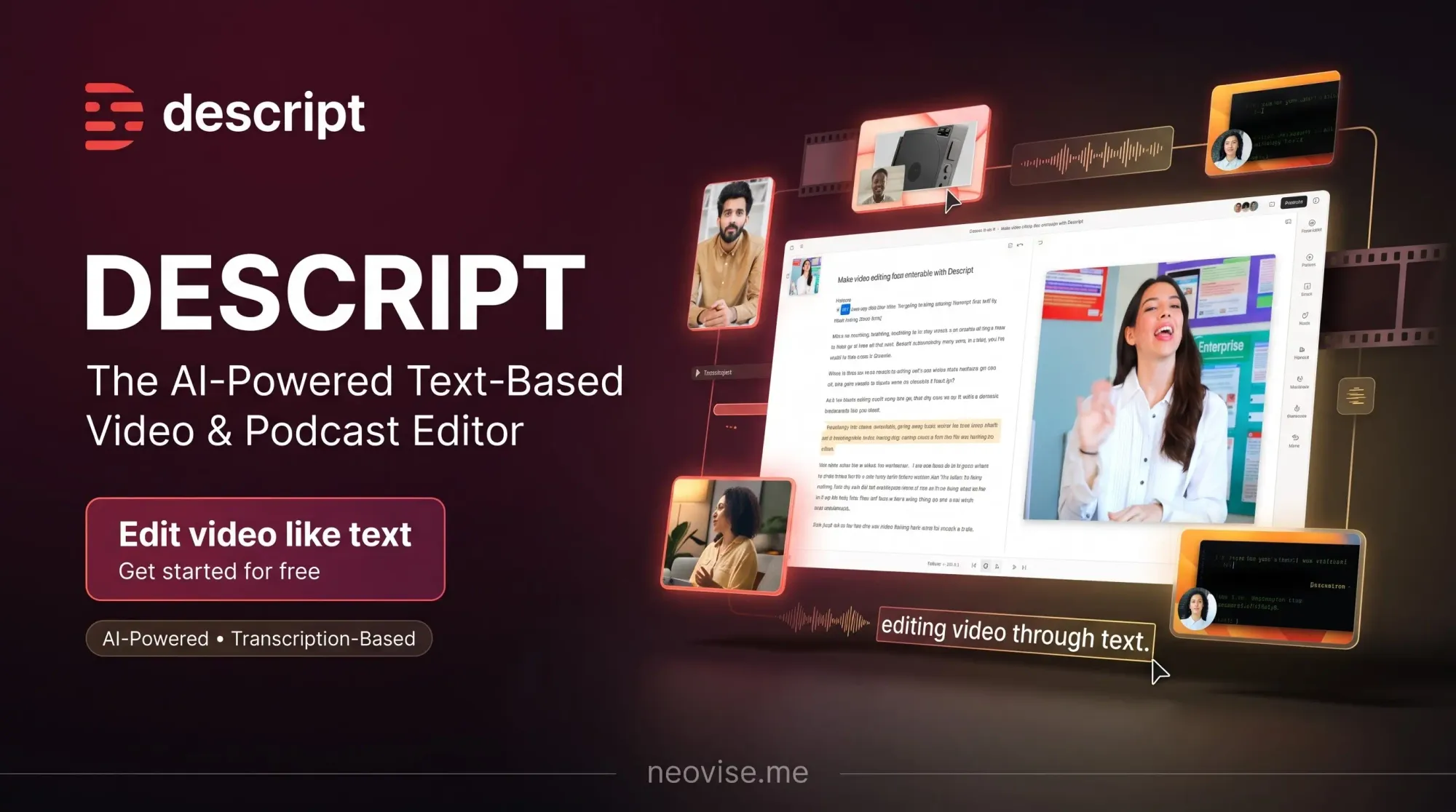
Descript is a full text-based editor. You edit video by editing the transcript, so removing a filler word or a bad take is as easy as deleting text. Clipping is one tool among many, and its moment detection is more manual than OpusClip’s, but you stay in control of the result. In one 2026 test, it also showed the best English transcription accuracy.
The free plan includes about 60 media minutes a month with 720p exports. Hobbyist costs $24 a month, or $16 a month billed yearly, and moves up to Creator and Business tiers from there.
Pros
- Precise transcript-based editing lets you correct what the AI got wrong
- Strong transcription accuracy and a deep timeline editor
- Good cost per source minute on annual billing
- Handles full multi-hour episodes, not just short clips
Cons
- Clipping is a side feature, and moment detection is largely manual
- No built-in scheduler for posting
- Steeper learning curve than one-click tools
- Free tier is capped at 720p
5. Klap: Simple One-Click Clipping
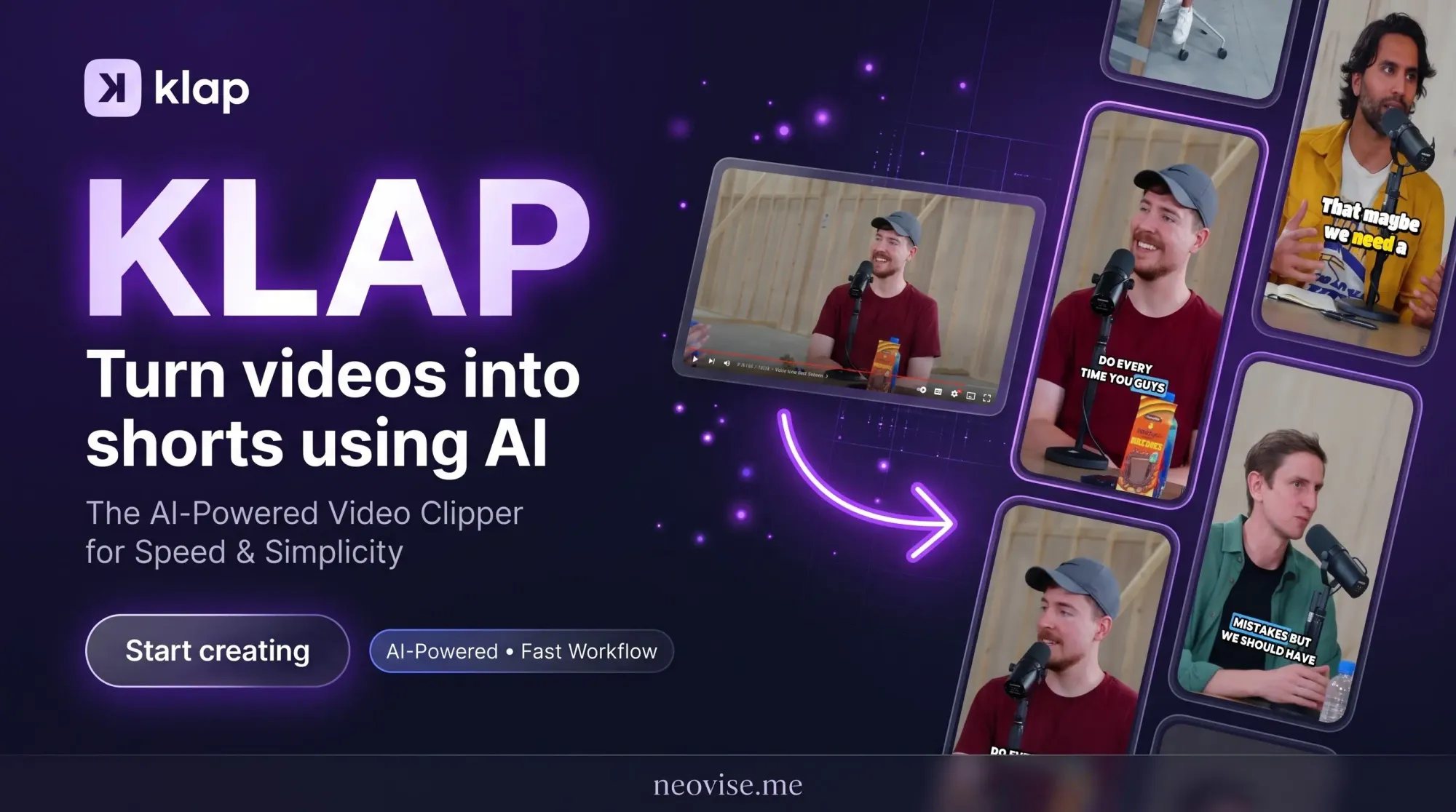
Klap targets people who want the least friction. You paste a link or upload a file, it generates reframed, captioned shorts, and you export them. Plans start around $29 a month and there is no free plan.
Pros
- Very simple workflow with almost no setup
- Automatic reframing and captions
- Good for non-technical users who want speed
Cons
- No free plan, so you can’t test it at no cost
- Starts at roughly $29 a month, higher than OpusClip Starter
- Fewer customization options than editor-style tools
6. Riverside Magic Clips: Best If You Record the Show There
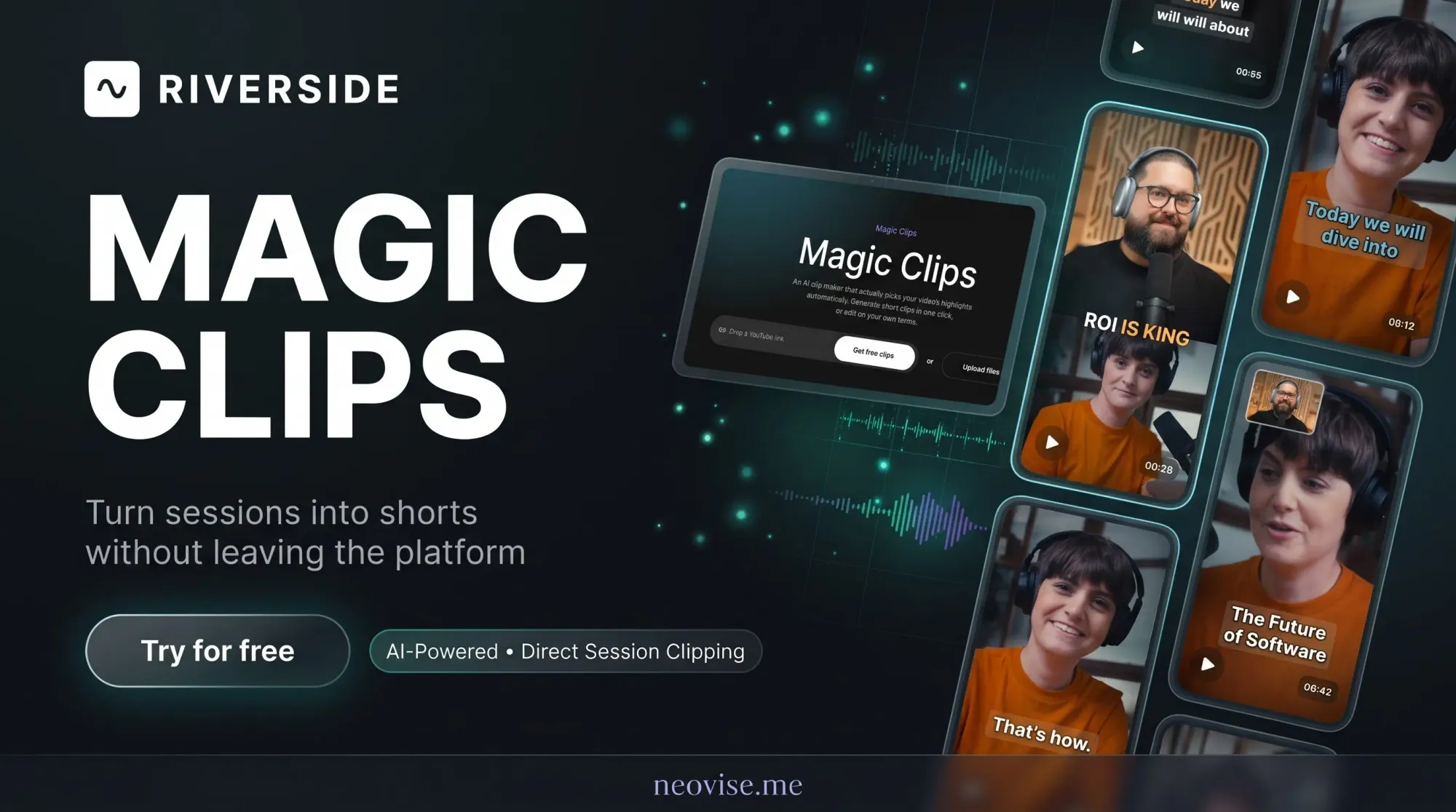
If you already record podcasts or interviews on Riverside, its Magic Clips feature turns sessions into shorts without leaving the platform. Magic Clips is included even on the free plan, though free exports are watermarked at 720p.
Pros
- Clips come straight from your recording session with no extra uploading
- Magic Clips is available on the free plan
- Strong choice if you also want high-quality remote recording
Cons
- Makes sense mainly if Riverside is already your recording tool
- Free exports are watermarked and limited to 720p
- Less flexible for clipping footage recorded elsewhere
7. Eklipse: Best for Gaming Streams
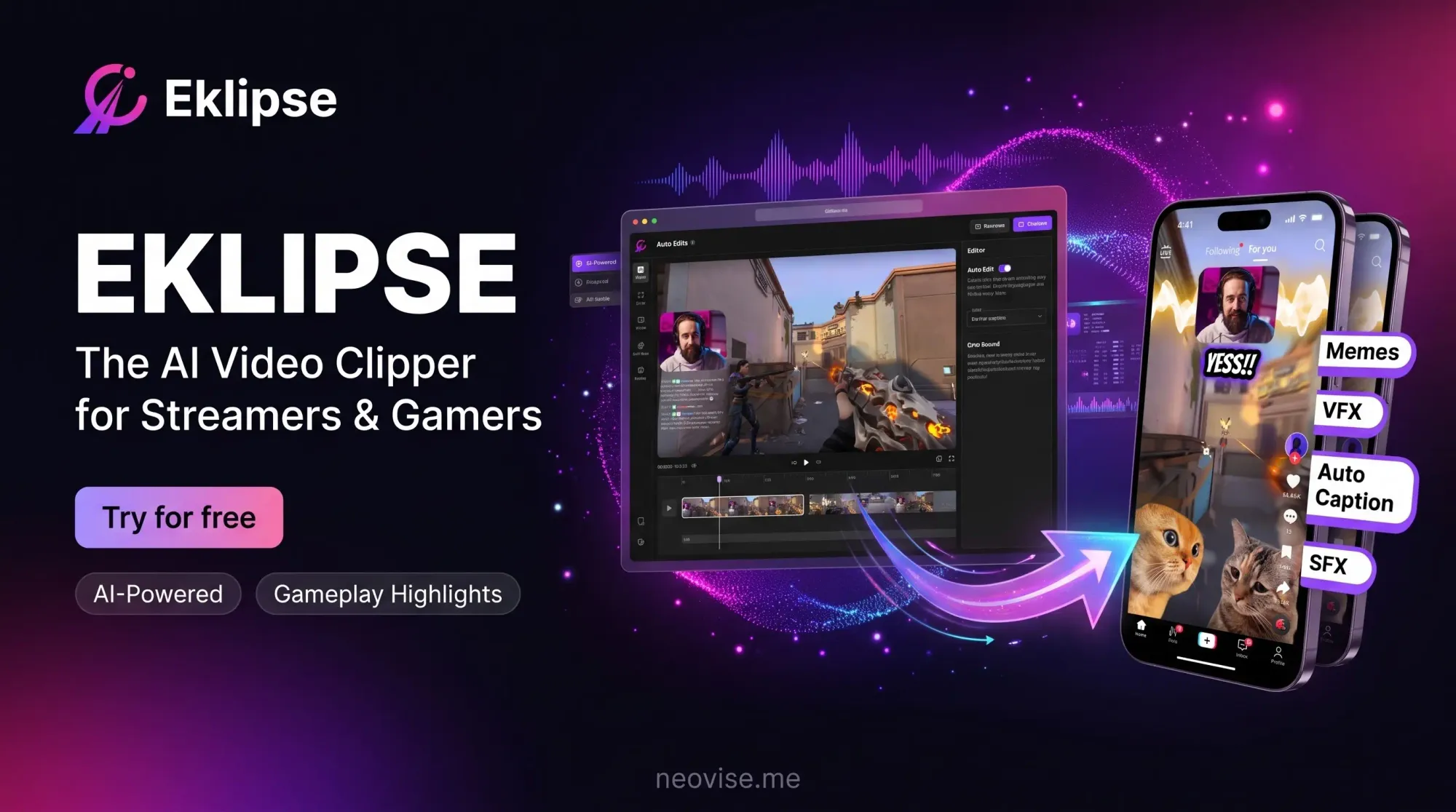
Eklipse is aimed at streamers. It watches gameplay for highlight moments, such as eliminations, clutch plays, and big reactions, and converts them into short vertical videos. General-purpose podcast clippers handle gaming footage poorly, so this is the one to try if you stream.
Pros
- Built to detect gameplay highlights that talking-head clippers miss
- Converts stream moments to vertical shorts quickly
- Useful for streamers who post daily
Cons
- Not suited to podcasts, webinars, or interviews
- Gaming-focused feature set limits other uses
- Pricing and free-plan limits change often, so check before subscribing
Comparison at a Glance
| Tool | Best For | Free Tier | Entry Paid Price | Notable Limit |
|---|---|---|---|---|
| OpusClip | Podcasts, webinars, long-form | 60 credits, watermark | $15/mo (monthly only) | Credits charged per source minute |
| Vizard | Budget and team clipping | 60 credits, 720p | Varies, check page | Free projects expire in ~3 days |
| Submagic | Caption styling | ~3 watermarked videos | $12–$19/mo | Short video length caps |
| Descript | Transcript-based editing | 60 media minutes | $16/mo yearly | No scheduler, manual clipping |
| Klap | One-click simplicity | None | ~$29/mo | No free plan |
| Riverside | Creators recording there | Magic Clips included | Varies | Best only inside Riverside |
| Eklipse | Gaming streams | Limited | Varies | Gaming-focused |
How to Choose the Right AI Clipping Tool
Start with your content type. For podcasts, interviews, and webinars, OpusClip is the default for a reason. For gaming, pick Eklipse. If you edit often and want precise control, Descript is safer, since you can fix what the AI gets wrong. If your clips are already short and you just want eye-catching captions, Submagic is the better fit.
Then do the credit math before you subscribe. Multiply your monthly hours of source footage by 60, compare that to each plan’s credits, and divide the price by the minutes you will process. That cost-per-minute figure tells you more than the headline price. Use free tiers to test with one real episode first, but remember that free exports carry watermarks and may expire after three days.
A last practical tip: whatever tool you use, review every clip before posting. AI picks plausible moments, not always the best ones, and a quick trim of the first few seconds often improves performance more than any caption style.
Conclusion
AI clipping tools have matured from novelty to genuine time savers in 2026. OpusClip leads for choosing moments, Vizard is the value pick, Submagic polishes captions, and Descript gives you control. Prices and credit allowances change often, so verify the current numbers on each pricing page. Test two tools on the same video, compare the results, and keep the one whose clips you would actually post.
Sources - upitrr , Reap, Genie Artificiel, Quso , Framekit