
Hardware Accelerated GPU Scheduling Explained
Learn what hardware accelerated GPU scheduling is, how it works in Windows, and whether enabling it can improve gaming performance and reduce system latency.

 English
 Russian
 Español
 Français
 Deutsch
 हिन्दी
 සිංහල
සිංහල 中文
中文 日本語
日本語

If you have explored the graphics settings on a modern Windows computer, you may have noticed a setting called hardware accelerated GPU scheduling. The name sounds complicated, and many gamers immediately wonder whether enabling it will boost their frame rate.
Before switching it on, it helps to understand what this feature actually does. Hardware accelerated GPU scheduling changes how your computer manages graphics tasks. In simple terms, it shifts some responsibility from the CPU to the GPU, which can improve efficiency in certain situations.
This guide explains the concept in clear language, how it affects game performance, why it is required for some modern graphics technologies, and when you should enable or disable it.
How Graphics Processing Traditionally Works
To understand this feature, we first need to look at how computers usually handle graphics.
Every computer has two key processors involved in gaming and visual tasks:
- CPU (Central Processing Unit) – Handles general system operations and game logic.
- GPU (Graphics Processing Unit) – Responsible for rendering images, videos, and game graphics.
You can imagine the CPU as a factory manager and the GPU as a specialized painter that only focuses on creating images.
When you play a game, the game engine generates a long list of graphics commands. Traditionally, the CPU organizes these commands and sends them to the GPU one by one. This process is known as GPU scheduling.
In this setup, the CPU prepares tasks, prioritizes them, and places them into a queue so the GPU always has instructions to process.
While this system works well, it introduces a limitation. The CPU must constantly manage graphics tasks while also handling other heavy workloads such as:
- Game physics
- Artificial intelligence calculations
- Background applications
- System operations
If the CPU becomes overloaded, the GPU may have to wait for instructions. This delay can cause frame drops or stuttering during gameplay.
What Hardware Accelerated GPU Scheduling Does
To solve this bottleneck, Microsoft introduced hardware accelerated GPU scheduling in newer versions of Windows.
When this feature is enabled, the responsibility of managing graphics scheduling moves from the CPU directly to the GPU.
Modern graphics cards include their own dedicated scheduling processors built into the hardware. With this feature turned on, the GPU can manage its own memory and task queue instead of relying on the CPU.
This change provides two key advantages.
First, it reduces the workload on the CPU. Without scheduling responsibilities, the CPU can concentrate on game logic, system tasks, and background applications.
Second, it improves communication efficiency between the CPU and GPU. Since the GPU manages its own task list, it can access required data faster without waiting for the CPU to send instructions.
These improvements can help reduce latency and improve system responsiveness during graphics-heavy workloads.
For a deeper look at Windows graphics management, you can explore Microsoft's official graphics architecture documentation or articles explaining GPU hardware acceleration.
Why This Feature Matters for Modern Games
For several years after its release, many gamers did not see dramatic performance improvements from this setting. However, it has become more important with the rise of AI-powered graphics technologies.
One major example is NVIDIA DLSS (Deep Learning Super Sampling). DLSS uses artificial intelligence to render games more efficiently.
 Neovise Staff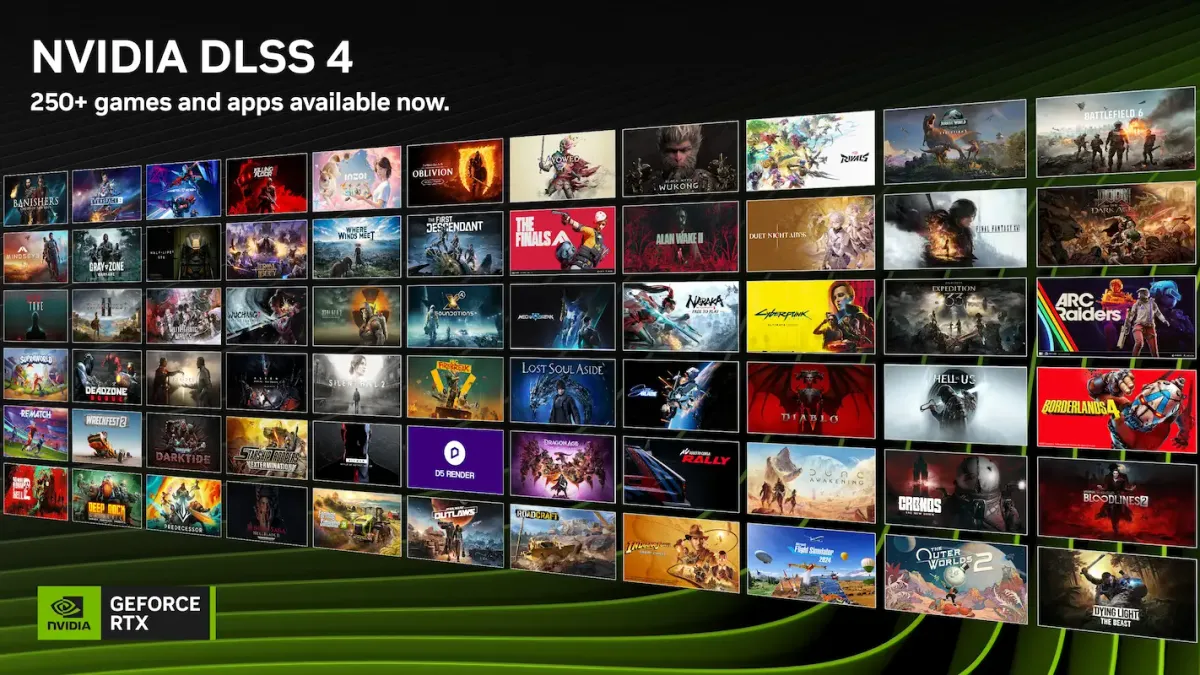
The newest versions of DLSS include frame generation, a feature that creates additional frames between real ones. By analyzing two rendered frames, AI generates a new frame that sits between them, making gameplay appear smoother.
This technique can significantly increase perceived frame rates without requiring extra rendering power.
However, frame generation requires the GPU to have full control over its memory and scheduling system. Because of this requirement, hardware accelerated GPU scheduling must be enabled for DLSS frame generation to work on supported NVIDIA GPUs.
If the setting is disabled, many games will block the frame generation option entirely.
Does It Increase FPS?
One of the most common questions gamers ask is whether enabling this setting will increase frames per second (FPS).
The truth is that the result depends heavily on your computer’s hardware configuration.
If your system has a weaker CPU but a powerful GPU, enabling hardware accelerated GPU scheduling can improve performance. By removing the scheduling workload from the CPU, the processor can focus on other important tasks, which may reduce bottlenecks and produce smoother gameplay.
In contrast, if your system already has a well balanced CPU and GPU, you may not see a noticeable difference. A powerful CPU can handle scheduling tasks easily, so transferring the job to the GPU might not change performance.
In many cases, the improvement may only be a small reduction in latency rather than a large FPS boost.
When You Should Leave It Disabled
Although this feature is beneficial in many cases, it is not ideal for every system.
One limitation involves video memory usage. When the GPU manages its own scheduling, it may require slightly more VRAM to store additional scheduling data. Older graphics cards with limited memory could experience performance issues.
If the GPU runs out of available VRAM, you may notice:
- Game stuttering
- Sudden frame drops
- Reduced stability
Another scenario where this setting can cause problems is virtual reality gaming. Some VR users have reported visual glitches or tracking delays when hardware accelerated GPU scheduling is enabled.
Because VR requires extremely stable frame delivery, many VR enthusiasts recommend leaving the feature disabled for the smoothest experience.
How to Enable or Disable Hardware Accelerated GPU Scheduling
Testing the feature on your own computer is simple, and Windows provides a built-in toggle.
Follow these steps:
- Open Windows Settings.
- Go to System.
- Select Display.
- Scroll down and click Graphics settings or Default graphics settings.
- Find the toggle labeled Hardware accelerated GPU scheduling.
- Turn the switch on or off.
After changing the setting, you must restart your computer for the change to take effect.
A good testing method is to run a game with the setting disabled and record the average frame rate. Then enable the feature, restart your system, and test the same game again. Comparing results will show whether the feature improves performance on your specific hardware.
Conclusion
Hardware accelerated GPU scheduling is a modern optimization that changes how Windows manages graphics workloads. By allowing the GPU to handle its own scheduling tasks, the system reduces CPU overhead and improves communication between processors.
Although the feature does not guarantee massive frame rate increases, it plays an important role in modern graphics technologies such as AI based frame generation. For many gaming systems, enabling it can help reduce latency and improve overall efficiency.
However, the benefits vary depending on your hardware configuration. Testing the setting on your own system is the best way to determine whether it improves your gaming experience.
Sources - gmicloud.ai, makeuseof.com, pcworld.com
Frequently Asked Questions