Top Free Screen Recording Software for Desktop (No Watermark & Unlimited Time)

 English
 Russian
 Español
 Français
 Deutsch
 हिन्दी
 සිංහල
සිංහල 中文
中文 日本語
日本語
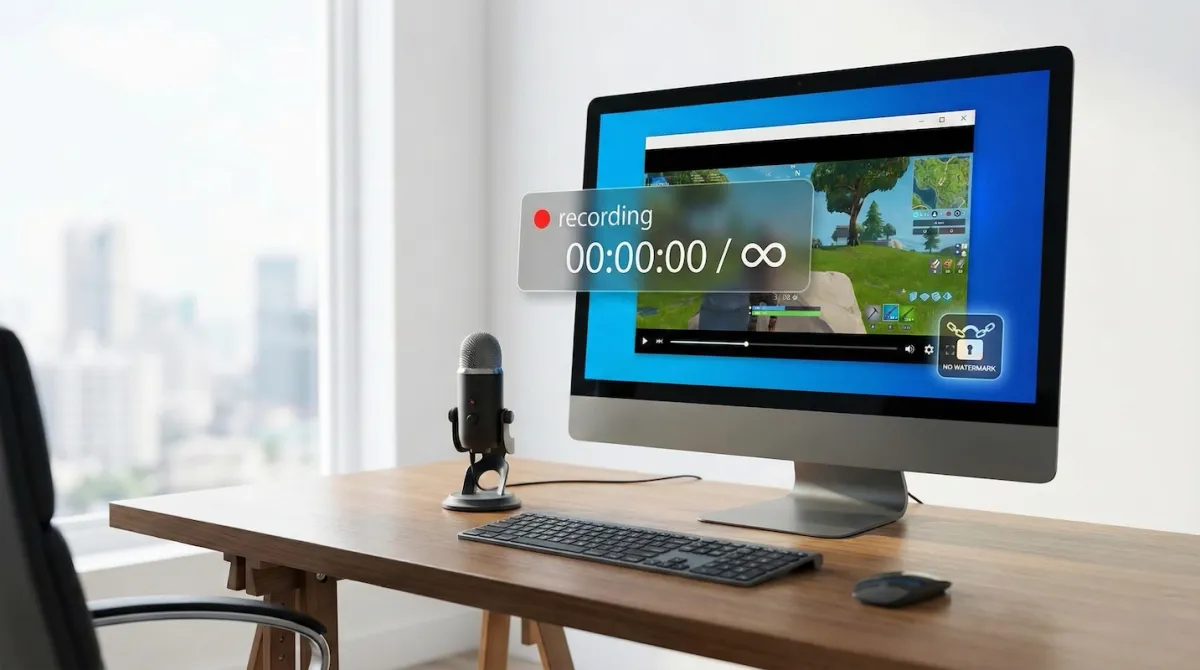
Finding a truly free screen recorder can be frustrating. Many tools advertise themselves as free, but once you finish recording, they either cut your video after a few minutes or add a large watermark that ruins the final output. This is especially painful when you are creating tutorials, recording gameplay, or capturing online meetings.
In 2025, you no longer need to deal with those limitations. Thanks to open-source developers and built-in operating system tools, there are reliable screen recorders that offer unlimited recording time and zero watermarks without costing anything.
Below are the best free screen recording tools for Windows and macOS that deliver professional results without hidden restrictions.
1. OBS Studio (Best Overall Choice)
Platform: Windows, macOS, Linux
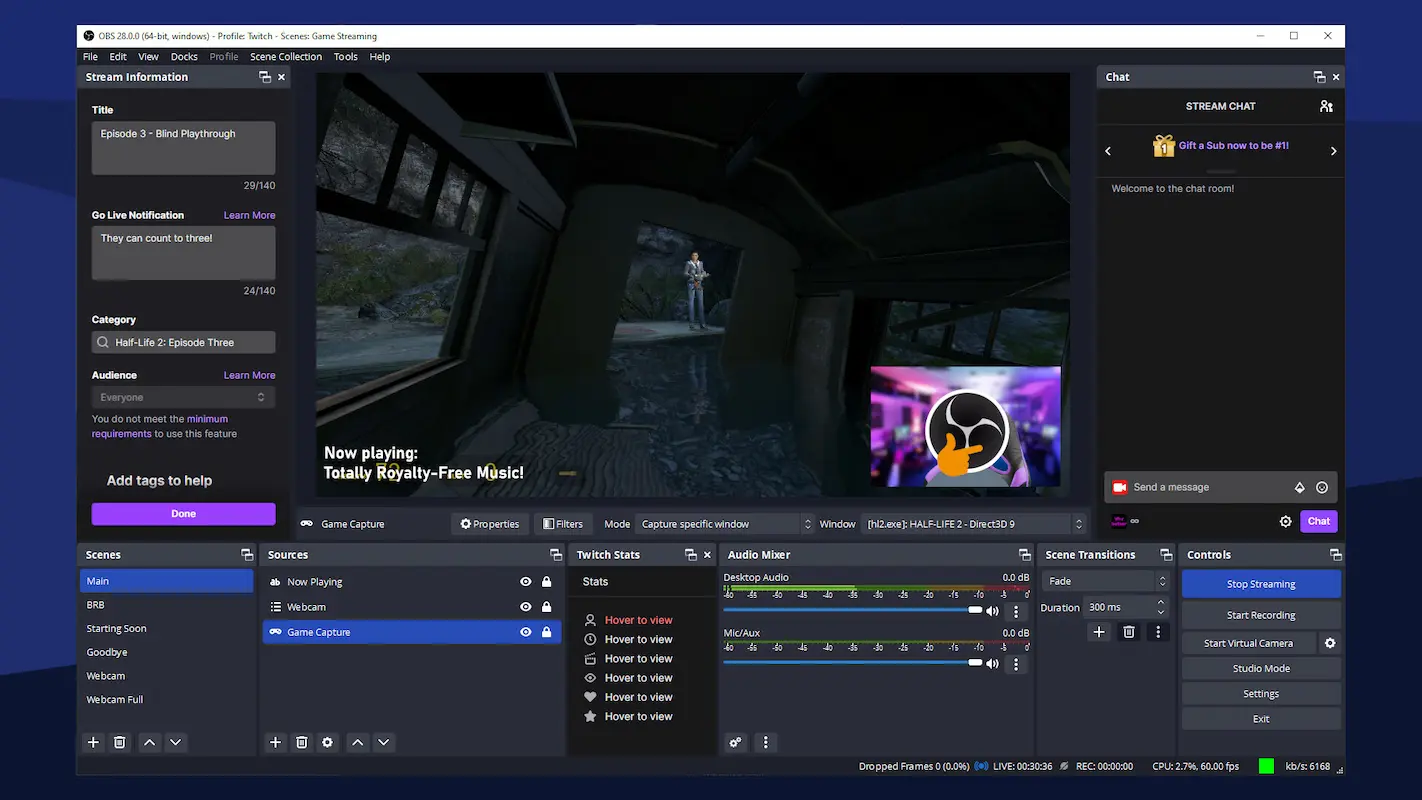
OBS Studio is widely considered the best free screen recording software available. It is used by millions of creators on YouTube and Twitch and is completely open-source, which means there are no paid upgrades, time limits, or watermarks.
Pros:
- Unlimited recording length with no quality restrictions
- Supports 1080p, 4K, and even 8K recording at 60 FPS
- Can record screen, webcam, and microphone simultaneously
- Uses hardware acceleration for smooth performance
Cons:
- Interface can feel complex for beginners
- Requires initial setup before first use
2. ShareX (Lightweight and Powerful)
Platform: Windows
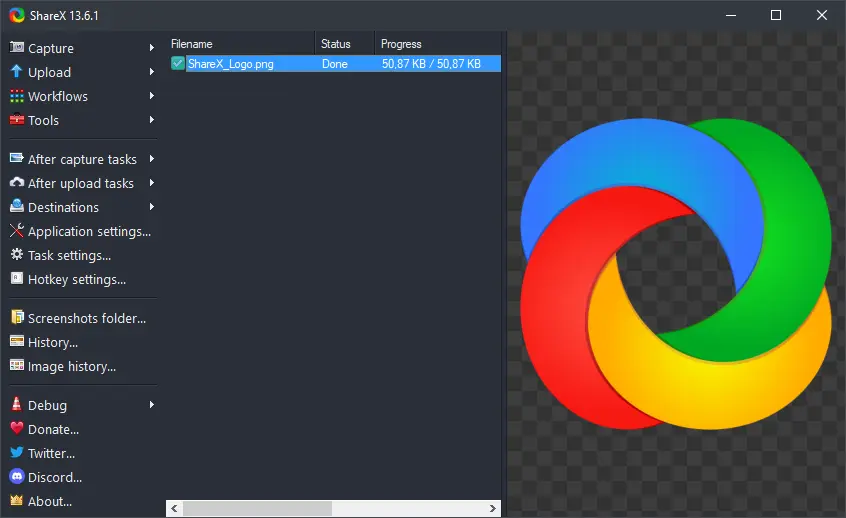
If OBS feels too heavy, ShareX is an excellent lightweight alternative. It is best known for screenshots, but it includes a powerful screen recorder powered by FFmpeg.
Pros:
- Extremely lightweight and fast
- No ads, watermarks, or recording limits
- Can export recordings as MP4 or animated GIFs
- Excellent for short clips and workflow automation
Cons:
- Interface is text-heavy and less beginner-friendly
- Webcam recording is limited and requires extra configuration
3. Xbox Game Bar (Best Built-In Option for Windows)
Platform: Windows 10 and Windows 11
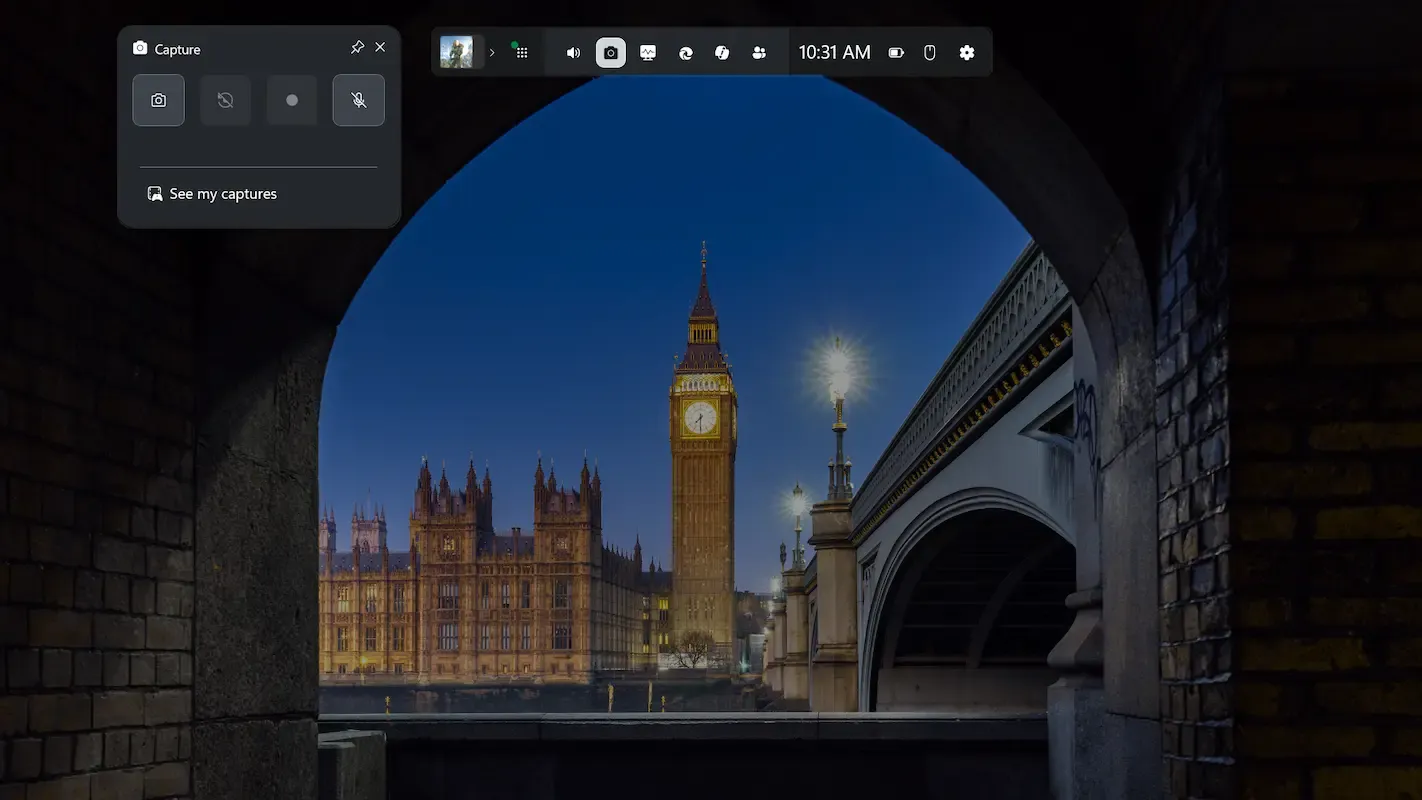
Windows includes a built-in recorder called Xbox Game Bar, and many users already have it without realizing it. You can open it instantly by pressing Windows Key + G.
Pros:
- No installation required
- Unlimited recording time
- Background recording feature lets you save the last moments of gameplay
- Optimized for games and browser apps
Cons:
- Cannot reliably record the full desktop
- Best suited for single apps or games, not file explorer or system settings
4. QuickTime Player (Best Built-In Option for Mac)
Platform: macOS
Mac users already have a solid screen recorder built in. QuickTime Player comes pre-installed on all macOS devices and produces clean, high-quality recordings.
Pros:
- Very easy to use
- Unlimited recording time
- Records microphone audio by default
- Stable and reliable for tutorials and presentations
Cons:
- Does not record system audio by default
- Requires a free virtual audio driver like BlackHole to capture internal sound
5. Free Cam 8 (Simple and Beginner-Friendly)
Platform: Windows
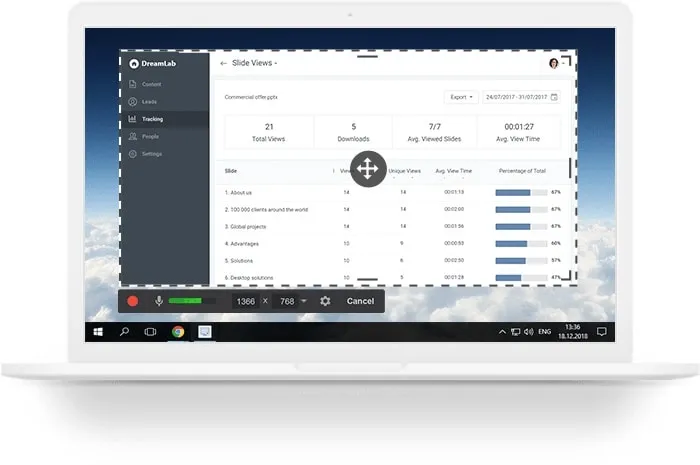
Free Cam is designed for users who want simplicity without complex settings. It works well for basic tutorials and presentations.
Pros:
- No watermark and unlimited recording time
- Includes a simple built-in editor
- Background noise reduction for microphone audio
Cons:
- Free version is limited to 760p resolution
- Exports videos in WMV format only
Conclusion
You no longer need to rely on so-called “free trials” that ruin your recordings with watermarks or time limits. There are excellent free tools available for every type of user.
- For professional-quality recording and gaming, OBS Studio is the best choice
- For lightweight screen clips and GIFs, ShareX works perfectly
- For zero downloads on Windows, use Xbox Game Bar
- For Mac users, QuickTime Player is more than enough
With these tools, you can create clean, unlimited screen recordings in 2025 without spending a single dollar.
Frequently Asked Questions