 English
 Russian
 Español
 Français
 Deutsch
 हिन्दी
 සිංහල
සිංහල 中文
中文 日本語
日本語

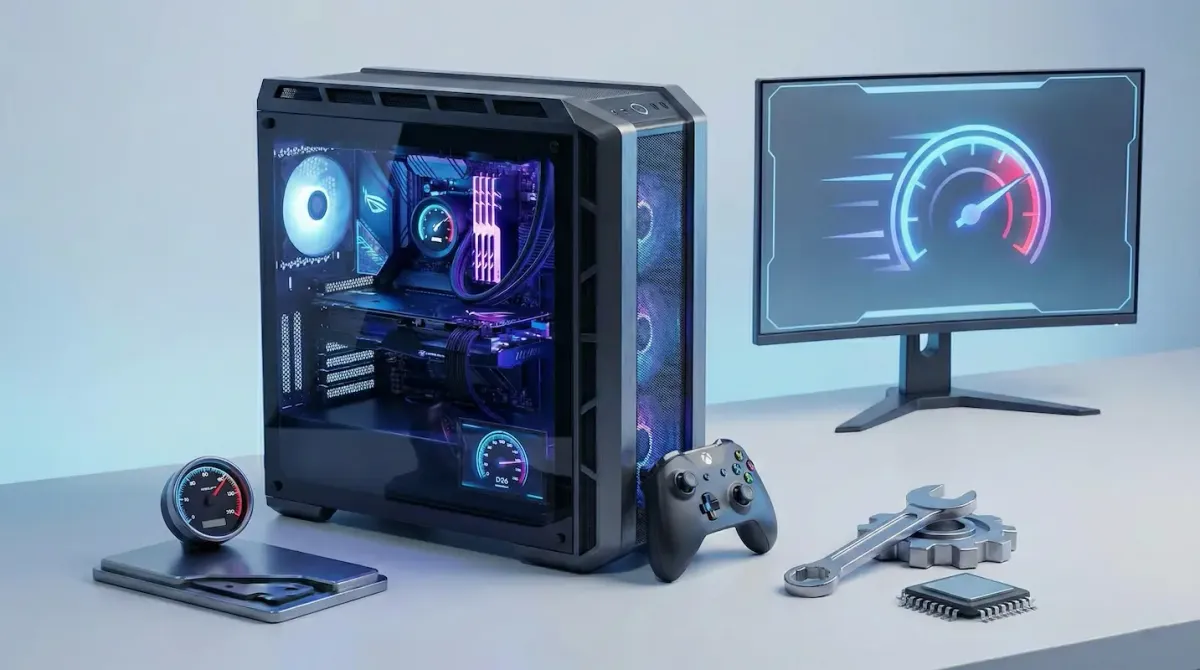
PC gaming in 2026 demands serious hardware power. With ray tracing, path tracing, and high-resolution textures becoming standard, even capable mid-range GPUs can struggle to maintain smooth frame rates.
Before spending hundreds of dollars on a new graphics card, you should fully optimize your current system. The right free tools can improve frame rates, stabilize performance, and even upscale games intelligently to look sharper while rendering fewer pixels.
Here are the best free tools to boost gaming performance on Windows PCs this year.
1. NVIDIA App (For RTX Users)
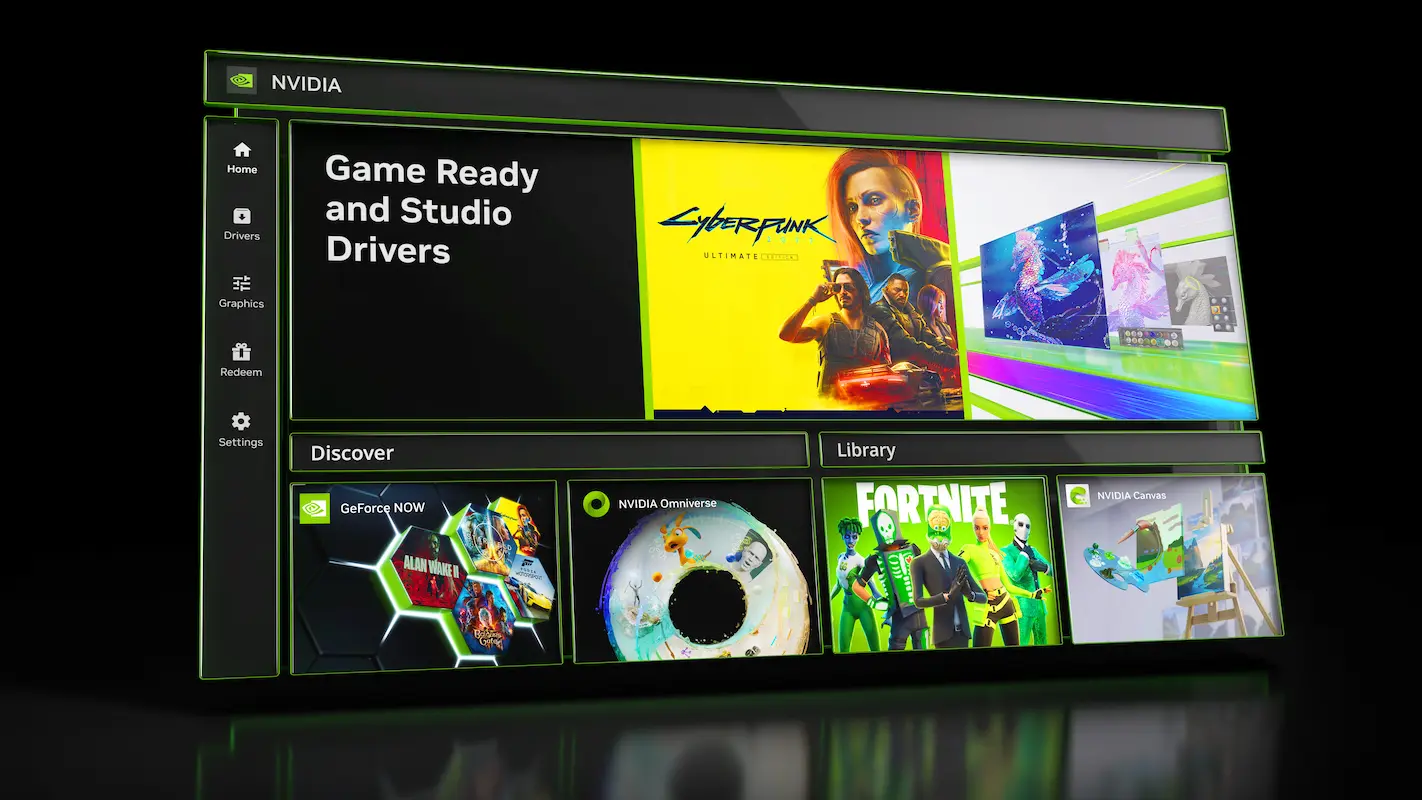
If you own an RTX graphics card, the new NVIDIA App should be your first install.
Available directly from NVIDIA, this app replaces the older GeForce Experience and NVIDIA Control Panel with a unified interface.
Why it matters:
- No mandatory login required for driver updates
- One-click optimization for supported games
- Global performance profiles
- Built-in monitoring tools
The standout feature in 2026 is RTX Dynamic Vibrance, which enhances color clarity in competitive titles like Valorant and Counter-Strike 2 without adding noticeable performance overhead.
For RTX users, this is the safest and most effective free performance tool available.
2. MSI Afterburner (Safe GPU Overclocking)
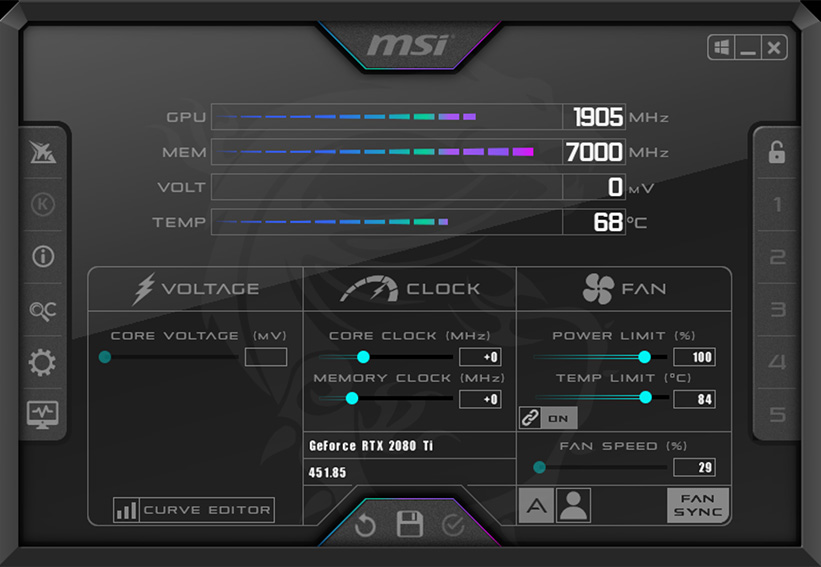
If you want raw performance gains, MSI Afterburner remains the industry standard.
It works on both NVIDIA and AMD GPUs.
Key benefits:
- Automatic OC Scanner that finds the highest stable overclock
- Manual voltage and clock control for advanced users
- Real-time monitoring through RivaTuner (RTSS)
- On-screen FPS and temperature display
The built-in OC Scanner makes overclocking beginner-friendly. You do not need deep technical knowledge. The software stress-tests your GPU and applies safe settings automatically.
A stable overclock can give you a free 5 to 10 percent performance boost instantly.
3. Magpie (Free Universal Upscaler)
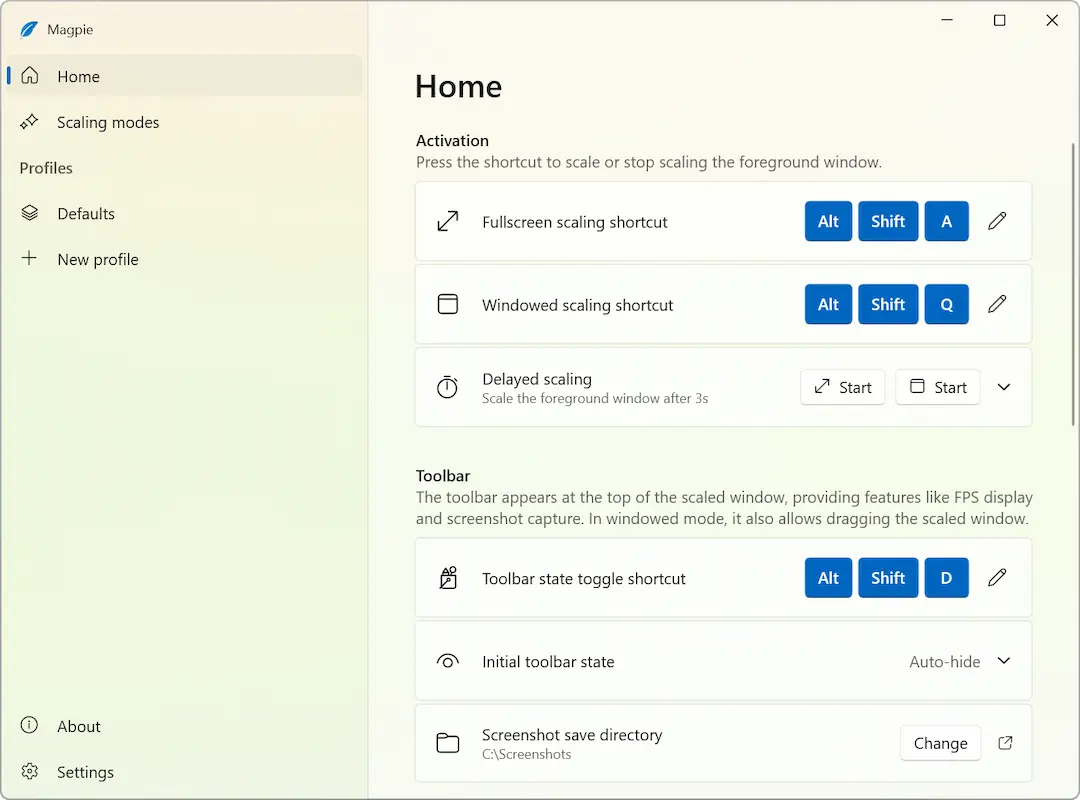
Not every game supports DLSS or FSR. That is where Magpie becomes extremely useful.
Magpie is a free, open-source window scaling tool that allows you to:
- Run games at a lower resolution
- Upscale them using FSR or NVIDIA Image Scaling
- Display them full screen at higher resolution
For example:
- Render at 1080p
- Upscale to 1440p or 4K
- Gain higher FPS while maintaining sharp visuals
It works with almost any GPU and almost any game that supports windowed mode.
For older graphics cards, this can dramatically increase playability.
4. Razer Cortex (Free RAM Optimizer)
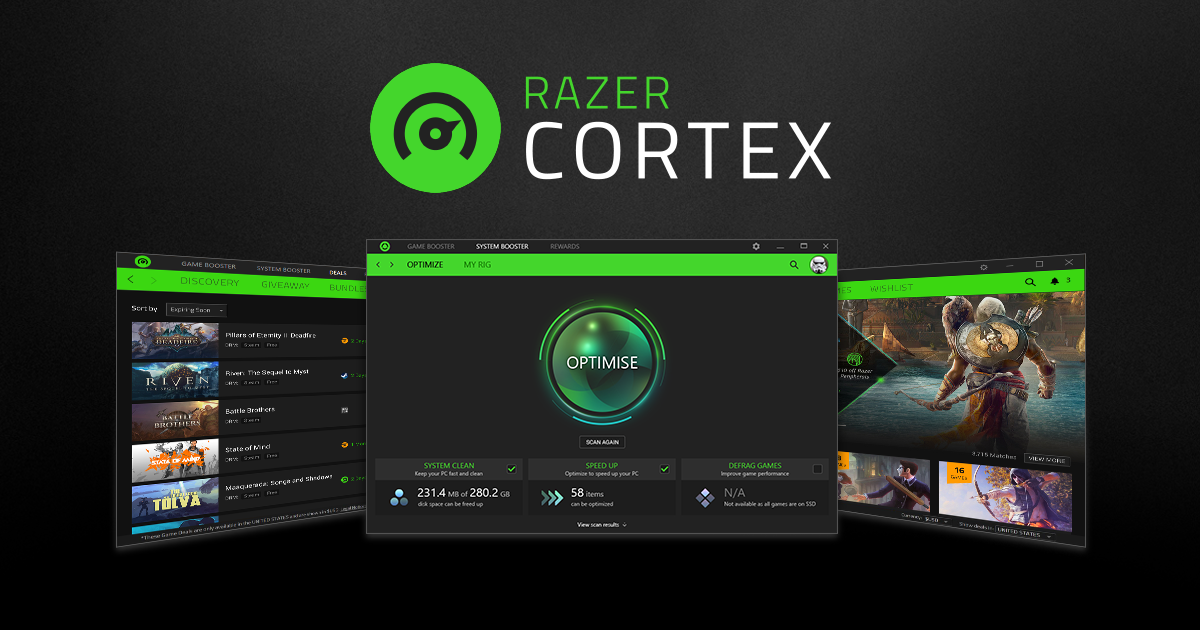
If you have 8GB or 16GB of RAM, background apps can easily steal performance. Razer Cortex helps free up memory automatically.
When you launch a game, Cortex:
- Closes unnecessary background processes
- Disables startup services temporarily
- Frees up RAM
- Focuses system resources on your game
On lower-end systems, freeing 1 to 2GB of RAM can reduce stuttering and improve consistency.
High-end systems may not need it, but budget laptops and older PCs benefit significantly.
5. CapFrameX (Fix Micro-Stuttering)
Sometimes your FPS counter looks high, but the game feels choppy. This is usually a frame pacing issue.
CapFrameX is a professional-grade analysis tool that helps diagnose performance problems.
It provides:
- 1% low and 0.1% low frame data
- Frame time graphs
- CPU and GPU usage breakdown
By analyzing this data, you can determine whether your bottleneck is:
- CPU
- GPU
- VRAM
- Storage
Instead of blindly lowering settings, CapFrameX helps you adjust the right setting for smoother gameplay.
Quick Comparison Table
| Tool | Main Purpose | Best For |
|---|---|---|
| NVIDIA App | Driver optimization and AI features | RTX users |
| MSI Afterburner | Overclocking and monitoring | All GPU owners |
| Magpie | Free upscaling | Older GPUs |
| Razer Cortex | RAM cleanup | Budget systems |
| CapFrameX | Stutter diagnosis | Advanced users |
How to Combine These Tools
For maximum improvement:
- Use MSI Afterburner to apply a safe overclock
- Use Magpie to render at lower resolution and upscale
- Use Razer Cortex to free RAM before launching games
- Use CapFrameX to fine-tune performance settings
Many users report 10 to 20 percent improvement when combining these optimizations properly.
Conclusion
You do not always need new hardware to improve gaming performance. Proper optimization can unlock hidden potential in your current system.
Free tools like MSI Afterburner, Magpie, and the NVIDIA App can deliver measurable gains without spending money. Before upgrading your GPU, make sure you have fully optimized what you already own.
Source - nvidia.com , msi.com , github.com, razer.com , capframex.com
Frequently Asked Questions