 English
 Russian
 Español
 Français
 Deutsch
 हिन्दी
 සිංහල
සිංහල
 中文
中文
 日本語
日本語

Best Free Tools to Speed Up Your Windows PC Without Upgrading Hardware
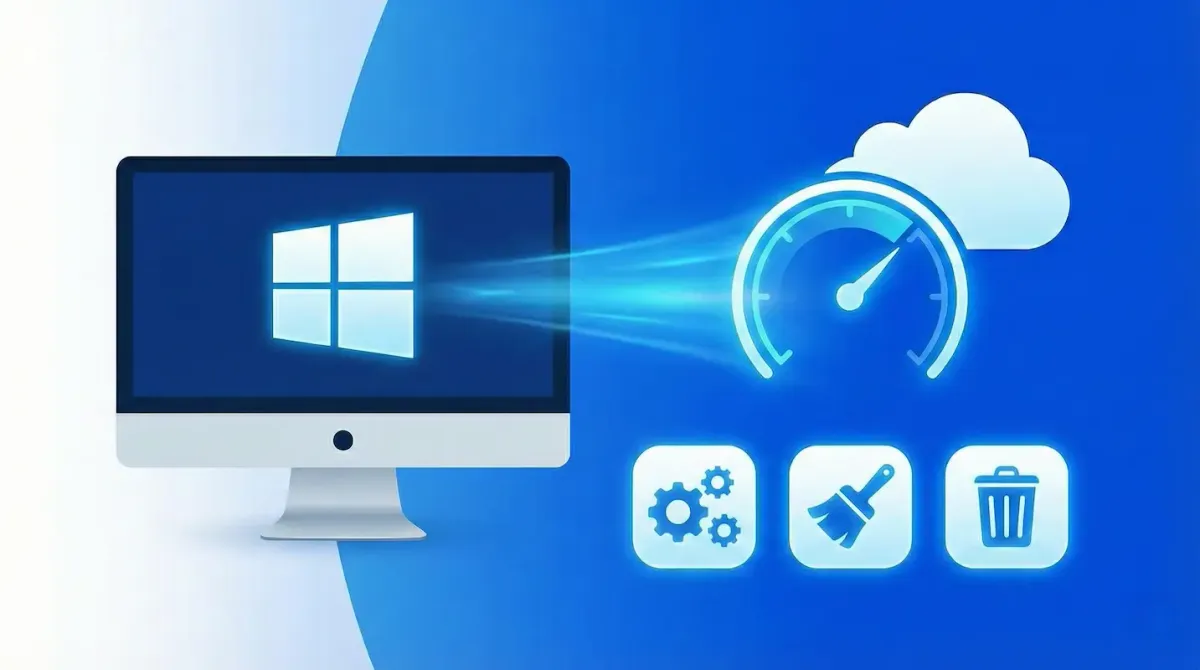
If your Windows PC feels slow, upgrading hardware should be your last option. In many cases, poor performance is caused by leftover files, unused programs, background services, and unnecessary visual effects rather than weak hardware.
In 2026, hundreds of so-called “PC booster” apps promise miracles but deliver ads, spyware, or broken systems. The good news is that a small number of legitimate and completely free tools can actually make your PC faster by removing junk, freeing memory, and fixing common performance bottlenecks.
Below are the best free tools you can trust to speed up your Windows PC without changing a single hardware component.
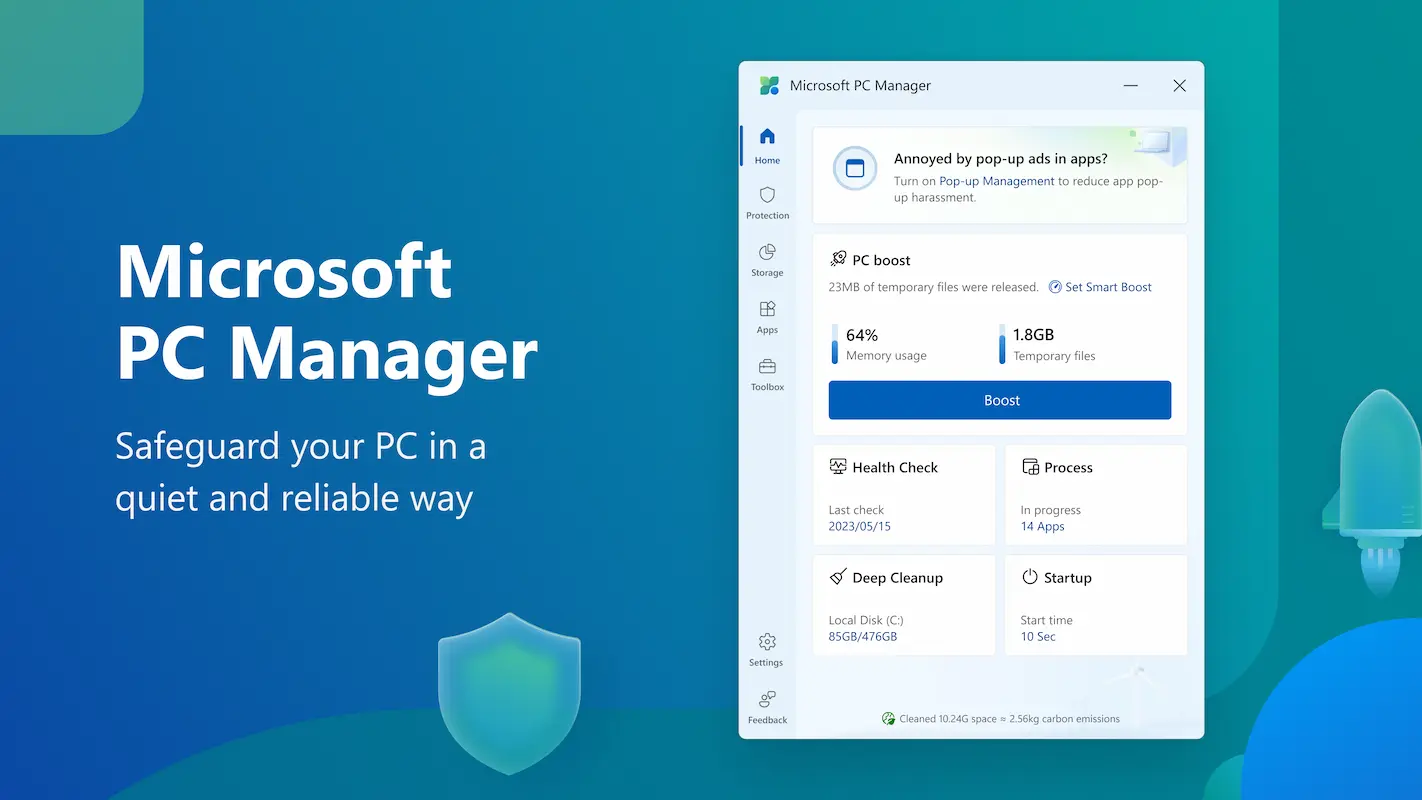
Microsoft PC Manager (The Official Tool)
Best for: Everyday users who want safe and simple optimization.
Microsoft finally solved a long-standing problem by releasing Microsoft PC Manager as an official Windows utility. Because it is built by Microsoft, it works safely with Windows 10 and Windows 11 without risking system stability.
The standout feature is the one-click Boost option. It clears temporary files, frees unused RAM, and disables unnecessary background processes instantly. Unlike third-party cleaners, it does not run constantly in the background, so it does not slow your system while idle.
For users who want speed improvements with zero risk, this is the best starting point.
BleachBit (Deep Cleaning and Privacy)
Best for: Advanced users who want deep cleanup and privacy control.
If you previously used CCleaner, switching to BleachBit is a smart move. It is open source, free, and respected by privacy-focused users worldwide.
BleachBit removes browser caches, leftover installer files, old logs, and hidden temporary data that Windows cleanup tools often miss. One powerful feature is its ability to compact browser databases, which can noticeably reduce startup times for Chrome and Firefox.
Because it is very powerful, users should carefully review each option before cleaning. Used correctly, it can recover several gigabytes of space and improve responsiveness.
Bulk Crap Uninstaller (Removing Hidden Bloatware)
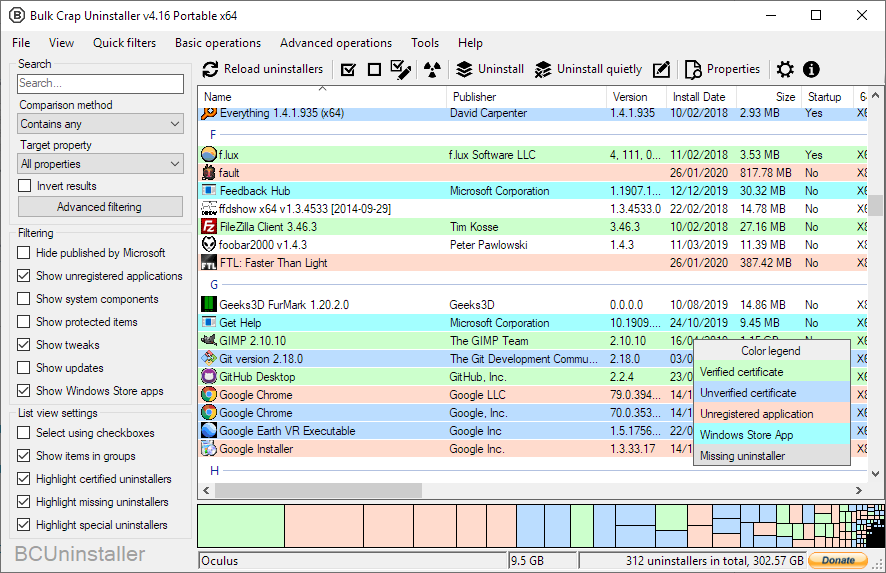
Best for: Completely uninstalling unwanted programs.
Many programs leave behind folders, services, and registry entries even after removal. Bulk Crap Uninstaller is designed to eliminate those leftovers permanently.
It scans for installed software, detects orphaned files automatically, and removes everything in one process. The interface clearly marks system components, reducing the chance of deleting something critical.
If your PC has years of accumulated software, this tool alone can dramatically improve boot times and overall performance.
Lively Wallpaper (Reducing UI Lag)
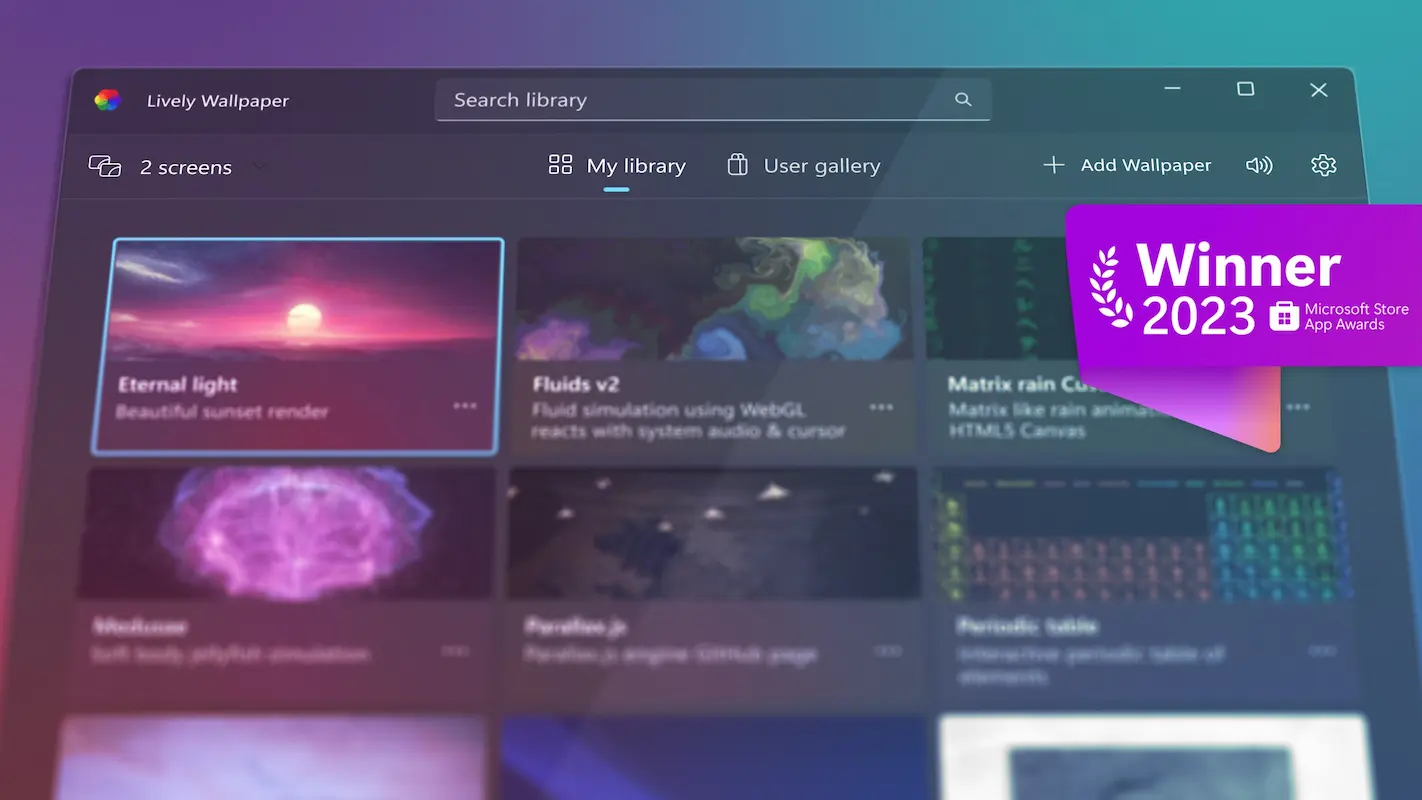
Best for: Making older systems feel smoother.
At first glance, a live wallpaper sounds like a bad idea for performance. However, Lively Wallpaper includes a smart performance mode that pauses animations automatically when apps are in use.
Windows 11 animations can feel choppy on older displays or weaker GPUs. Lively allows you to control visual effects while ensuring they shut off during gaming, browsing, or productivity tasks.
This improves perceived smoothness without increasing resource usage during active work.
WizTree (Finding Storage Bottlenecks)
Best for: Identifying files that slow down your system.
When an SSD becomes nearly full, Windows performance drops sharply. WizTree is one of the fastest tools available for locating large, forgotten files.
Instead of scanning every file individually, WizTree reads the file table directly, allowing it to map an entire drive in seconds. The visual layout makes it easy to identify massive folders or temporary files that should have been deleted long ago.
Freeing disk space with WizTree can instantly restore lost performance.
Quick Performance Checklist
| Tool | Main Purpose | Skill Level |
|---|---|---|
| Microsoft PC Manager | Memory and cache cleanup | Beginner |
| BleachBit | Deep cleaning and privacy | Intermediate |
| Bulk Crap Uninstaller | Removing bloatware | Beginner |
| WizTree | Disk space analysis | Beginner |
Avoid Fake Performance Tools
Any program claiming to “download more RAM,” “repair the registry automatically,” or “update all drivers instantly” should be avoided. Modern versions of Windows handle drivers efficiently, and registry cleaning rarely improves speed while often causing system errors.
Sticking to proven tools keeps your system fast and stable.
Conclusion
Speeding up your Windows PC does not require new hardware. By removing junk files, freeing memory, uninstalling unused programs, and reclaiming disk space, most systems can feel dramatically faster.
These free tools work because they address real problems rather than selling false promises. With regular maintenance using the right software, even older PCs can remain fast and reliable in 2026.
Source - microsoft.com , bleachbit.org , bcuninstaller.com